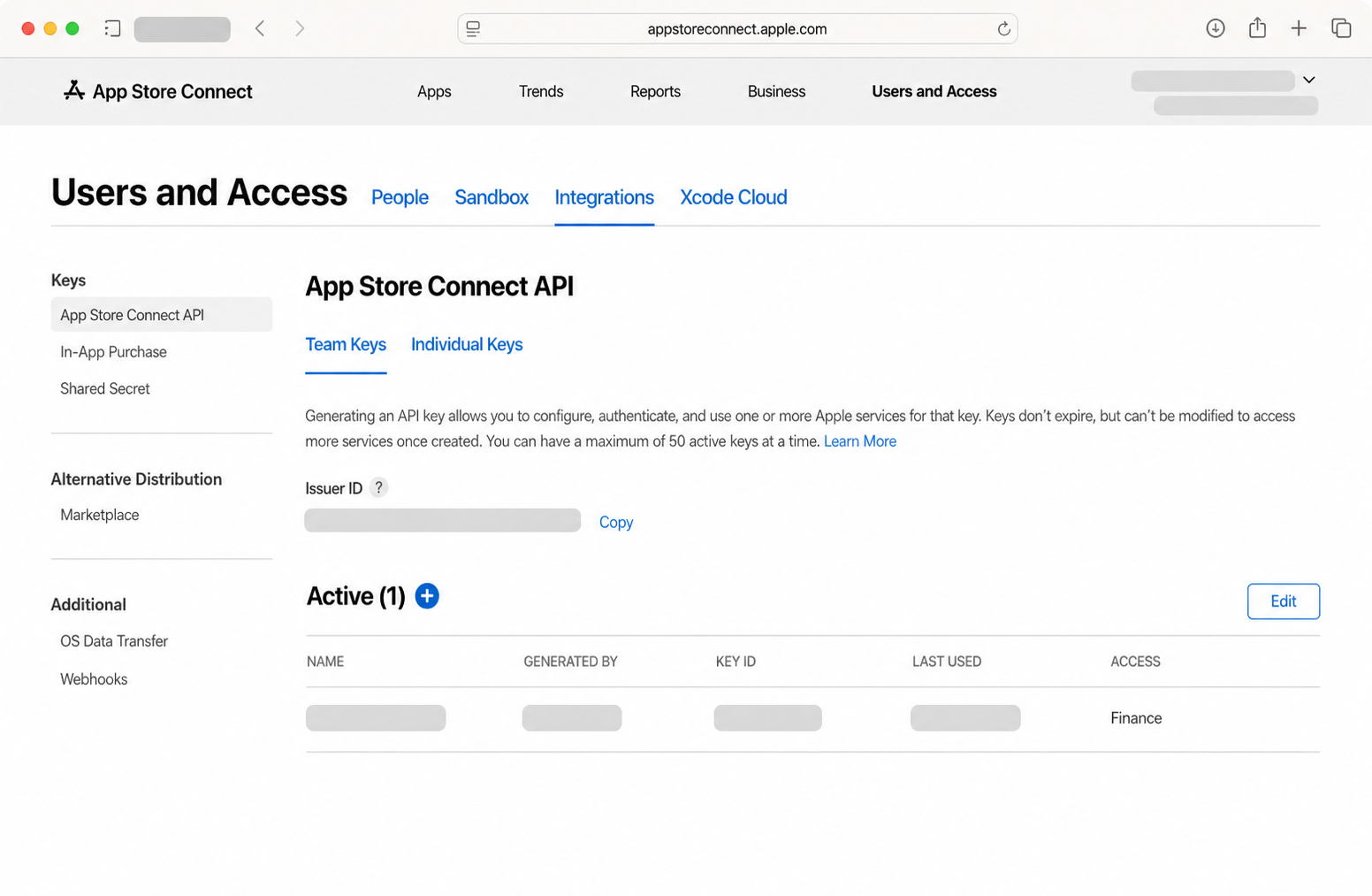
Open Team Keys.
In App Store Connect, follow this exact navigation path:
- Users and Access
- Integrations
- App Store Connect API
- Team Keys
Use a Team Key — not an Individual Key — because Apple only permits Team Keys to access Sales and Reports.
You only do this once. We’ll collect four items from App Store Connect, then AllMyApps will verify them directly with Apple from your iPhone.
You need an Account Holder or Admin account in your Apple Developer team to create API keys.
This choice controls which reports AllMyApps may read. It does not give AllMyApps permission to change apps, modify builds, or alter store listings.
Choose Apple’s Sales and Reports role. This grants read-only access to downloads, revenue, developer proceeds, refunds, countries, devices, and subscriber retention metrics.
If Team Keys displays a Request Access button instead of a + button, the Account Holder of your Apple Developer team must click it once to activate API access for the team.
In App Store Connect, follow this exact navigation path:
Use a Team Key — not an Individual Key — because Apple only permits Team Keys to access Sales and Reports.
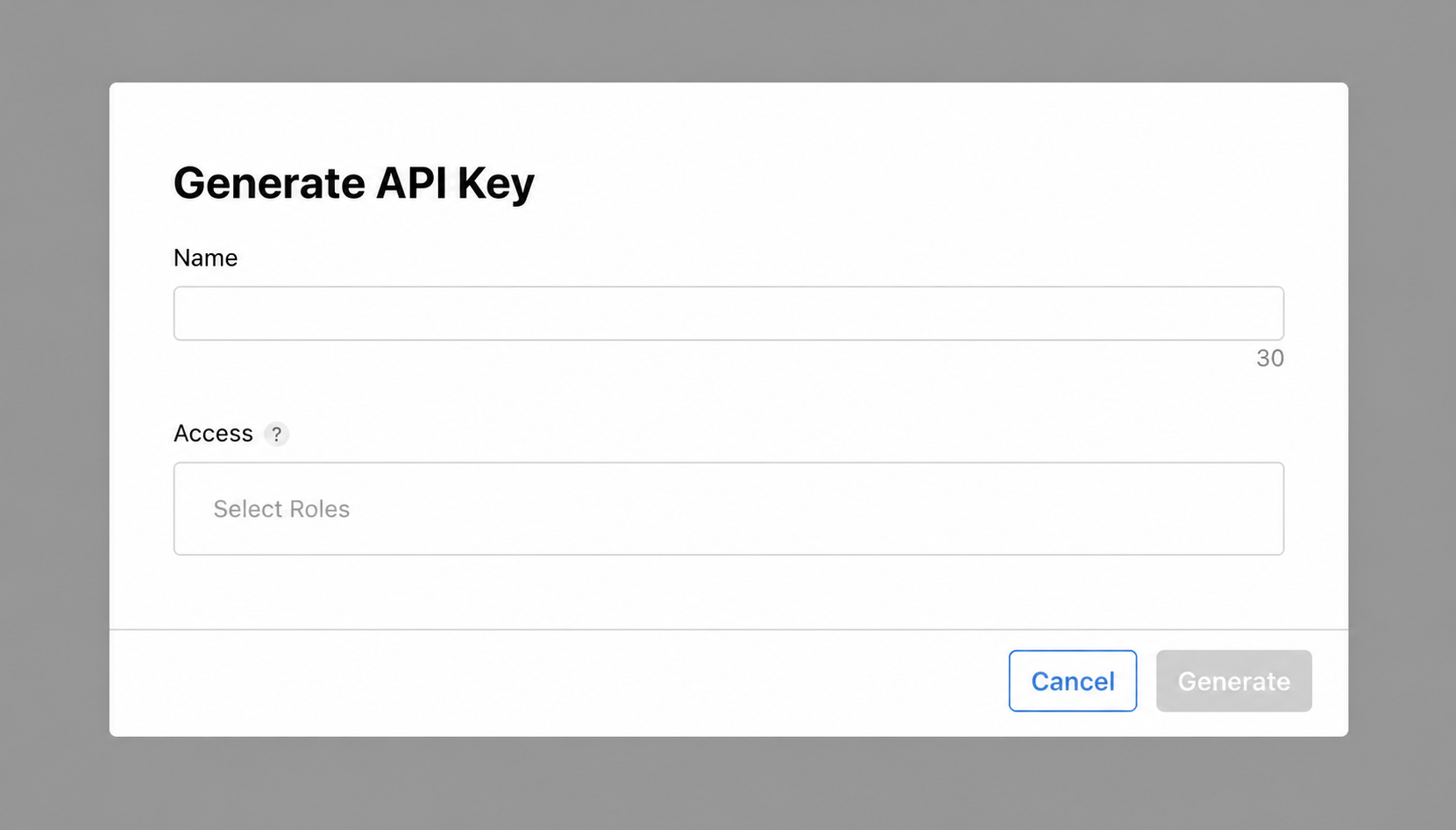
Name the key AllMyApps, then choose Apple’s access role:
Click Generate. On the next screen, click Download API Key (.p8) immediately.
Apple only allows you to download the .p8 file once. Store it in iCloud Drive, your Files app, or Mac securely. Never email or share it.
If the download fails on iPhone or iPad, see how to move the .p8 file.
Stay on the Team Keys page in your browser:
The Key ID is a 10-character code (e.g. 2X9R42792T). The Issuer ID looks like a long UUID with hyphens.
••••••••-••••-••••-••••-••••••••••••
| Name | Key ID | Access |
|---|---|---|
| AllMyApps | •••••••••• |
Sales and Reports |
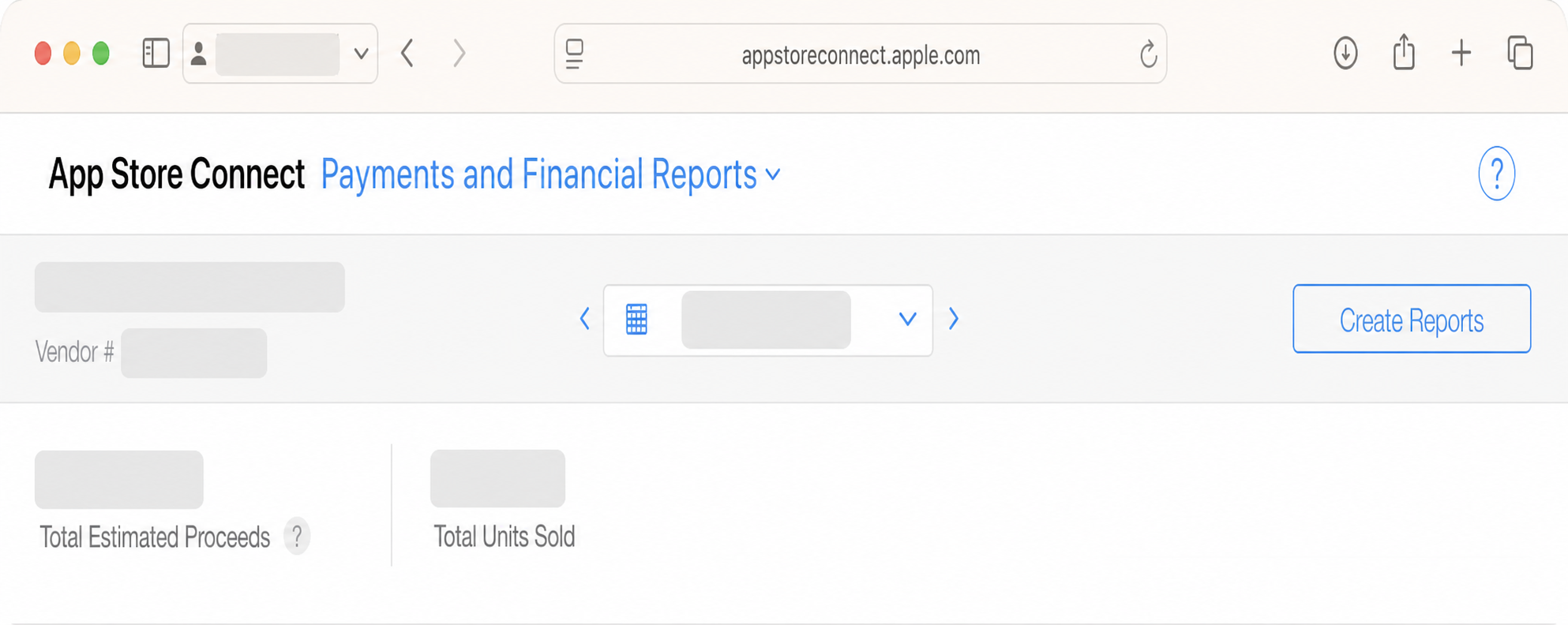
In App Store Connect's top navigation, open Reports (or Payments and Financial Reports). Your numeric Vendor # appears beneath your legal entity name near the upper-left corner.
The Vendor Number is purely numeric (e.g. 85123456). It is not your Team ID, Apple ID, or App Apple ID.
Open AllMyApps on your iPhone, tap Connect Account, and provide your credentials:
AllMyApps runs one verification request directly to Apple to test validity. Once verified, your credentials are saved in the device Keychain and your dashboard populates automatically.
Saved exclusively in your iPhone Keychain.
00000000-0000-0000...
2X9R42792T
85123456
AllMyApps stores your credentials in the on-device iOS Keychain and communicates directly with Apple's servers over encrypted TLS. There is no intermediate server, database, or analytics tracking.
Verify that your Issuer ID was copied directly from Team Keys (not an Individual Key), that the Key ID matches the filename of the .p8 key (e.g. AuthKey_KEYID.p8), and that the key is still marked as Active.
Apple offers the private key download only once for security reasons. If the file is lost, simply click the blue + button to create a new key named AllMyApps, download its .p8 immediately, and use its corresponding new Key ID.
Navigate to Payments and Financial Reports (or Reports) in App Store Connect. Look right beneath your company or developer name at the top left. The Vendor Number is an 8-digit or numeric code.